1
Open the N9+ app and sign in.

Perform an Exam
Connect the wireless otoscope, use a clean age-appropriate speculum, and record each ear through the guided app workflow.
Use this page with the current N9+ app prompts, product labeling, organizational protocols, and clinician direction.
Use a clean speculum for each ear and follow current in-app guidance for patient age, placement, and safe insertion.
Step by step
Open the N9+ app and sign in.
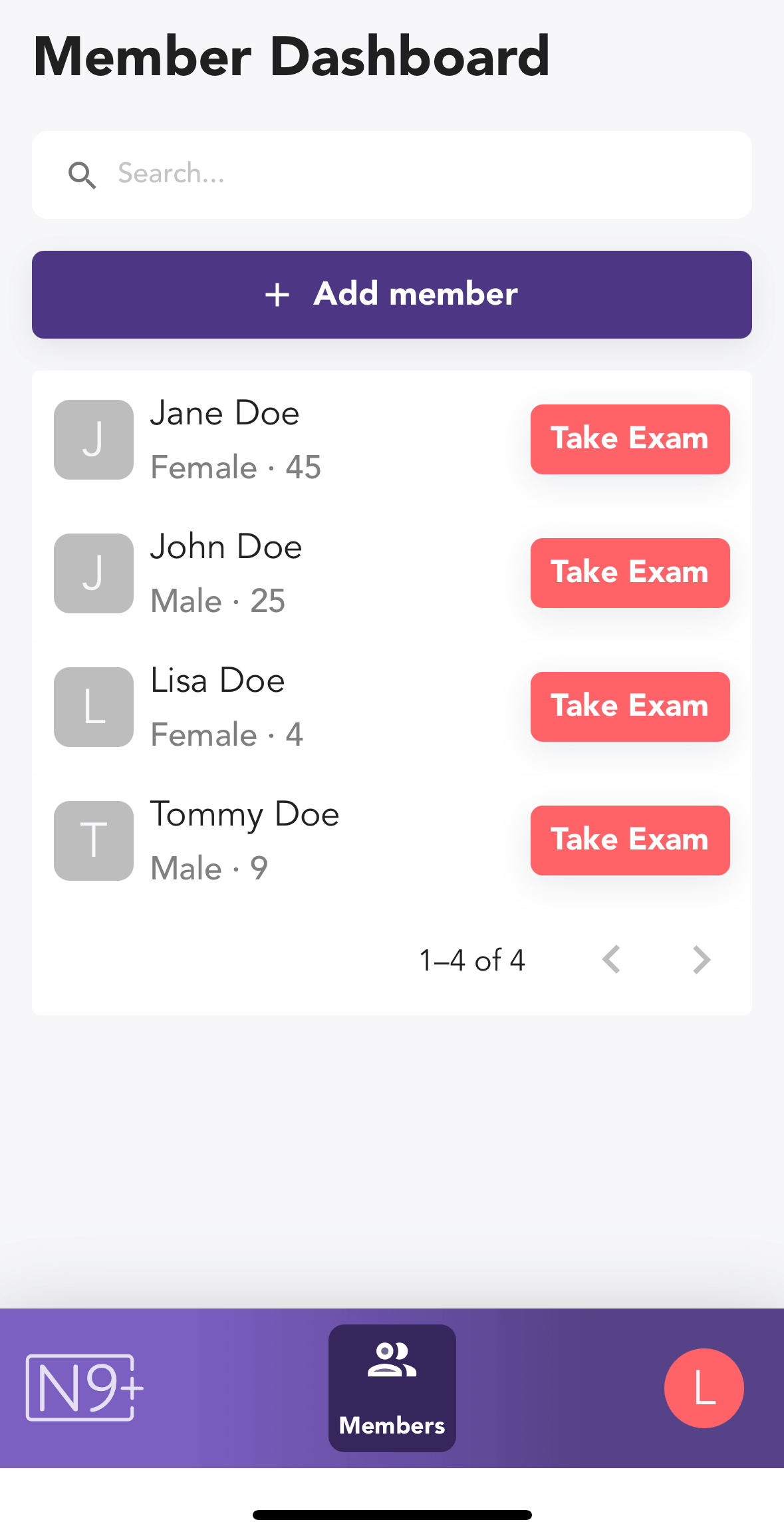
Choose the patient from the Member Dashboard and tap Take Exam.
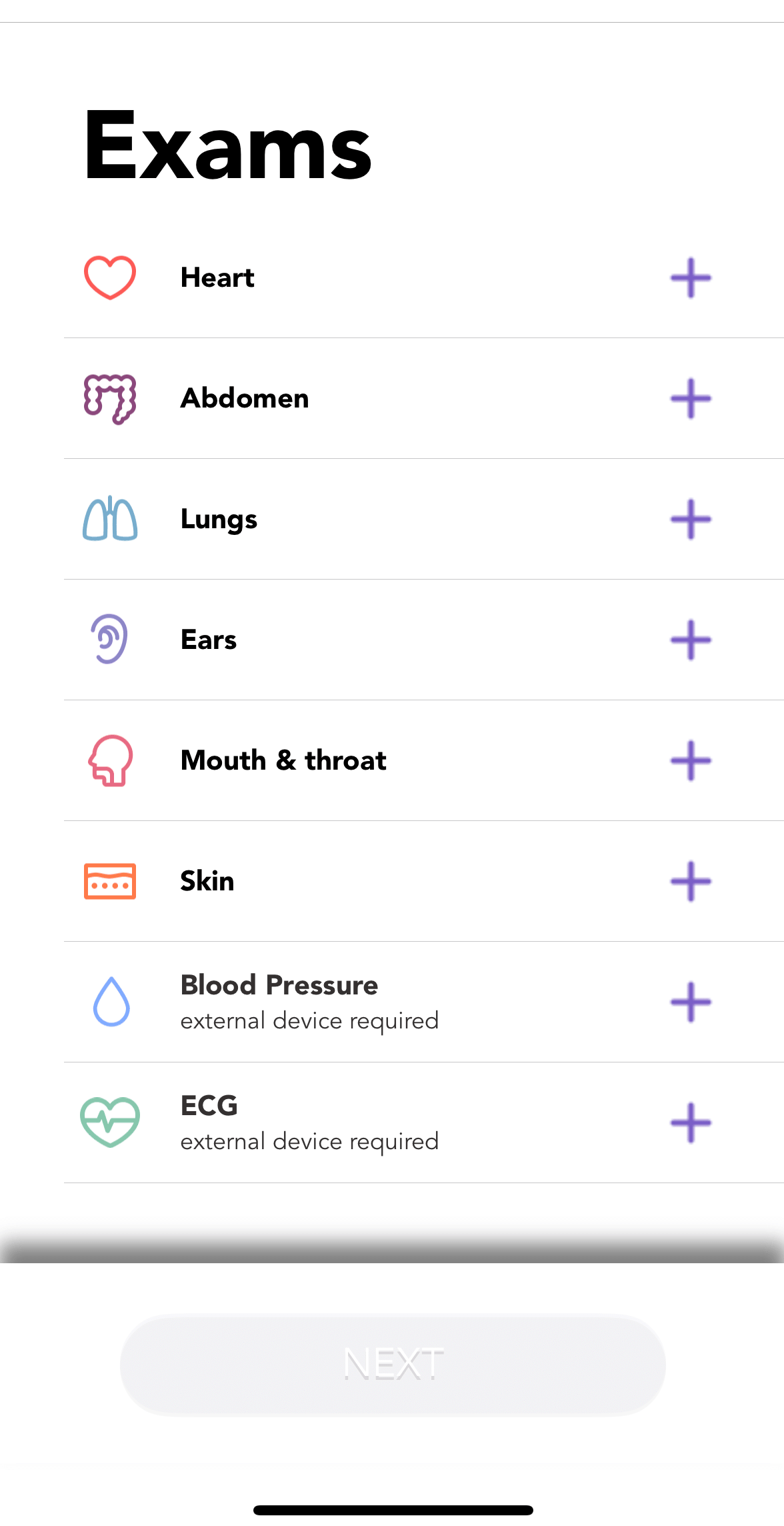
Select Ears from the exam list.
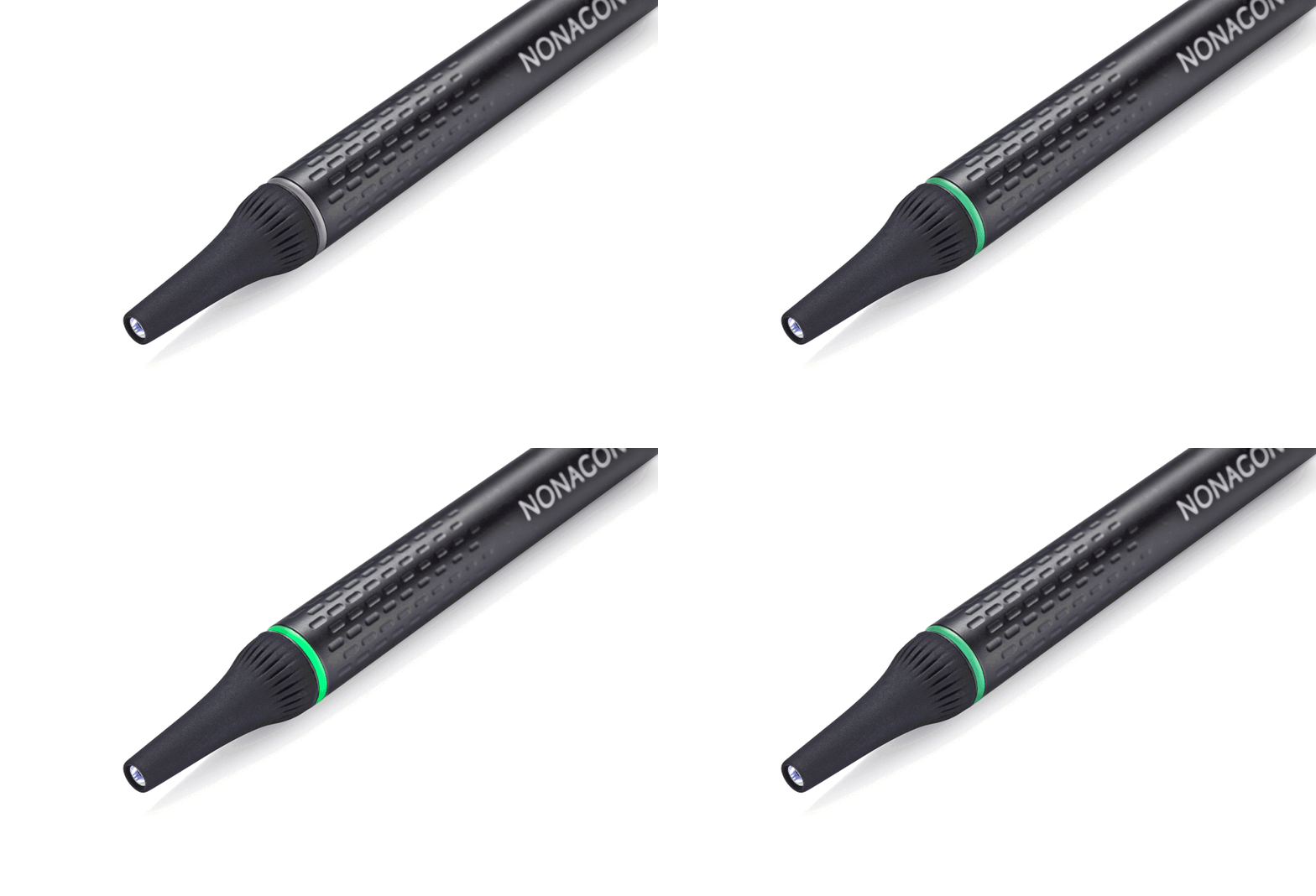
Remove the otoscope cap to power it on, then follow the app prompt to connect.
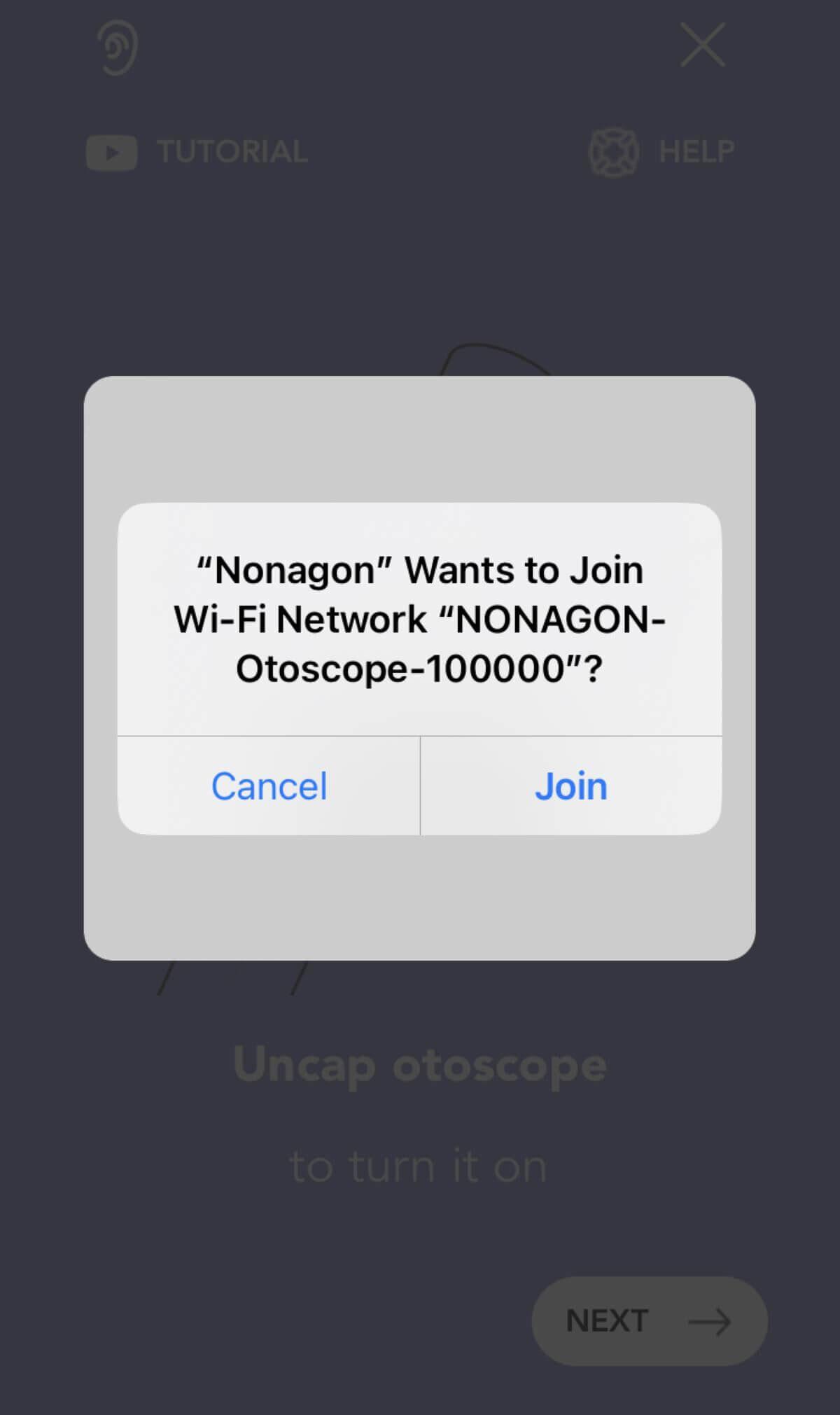
Join the otoscope wireless network when the phone prompts you.
Confirm the otoscope is connected; the indicator ring should remain steadily illuminated.
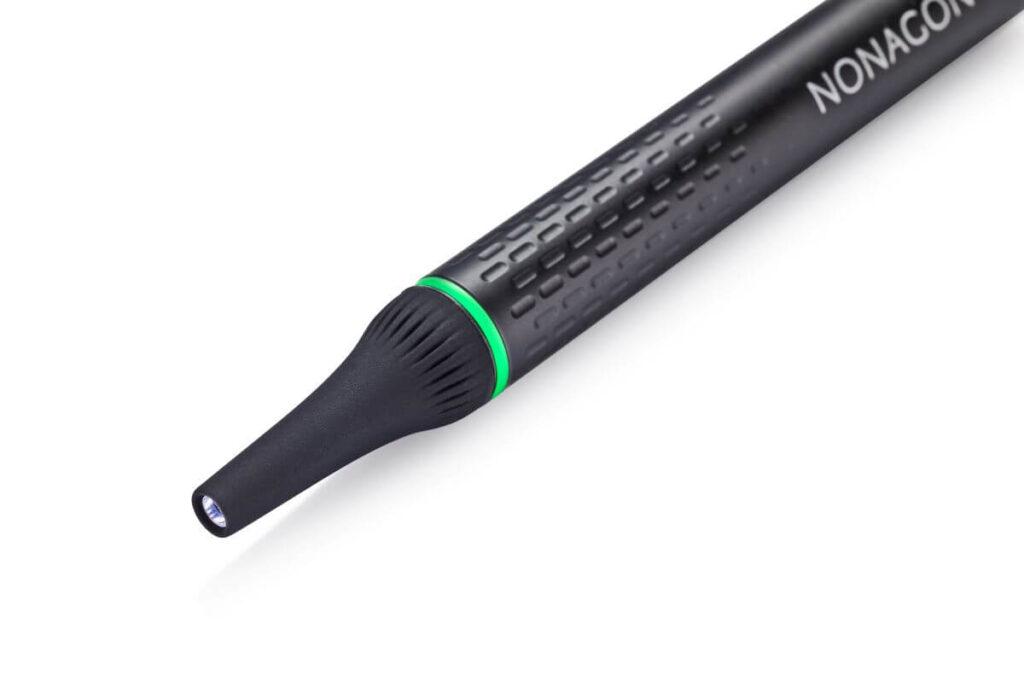
Attach the clean speculum indicated by the app, review the positioning instructions, and continue when ready.
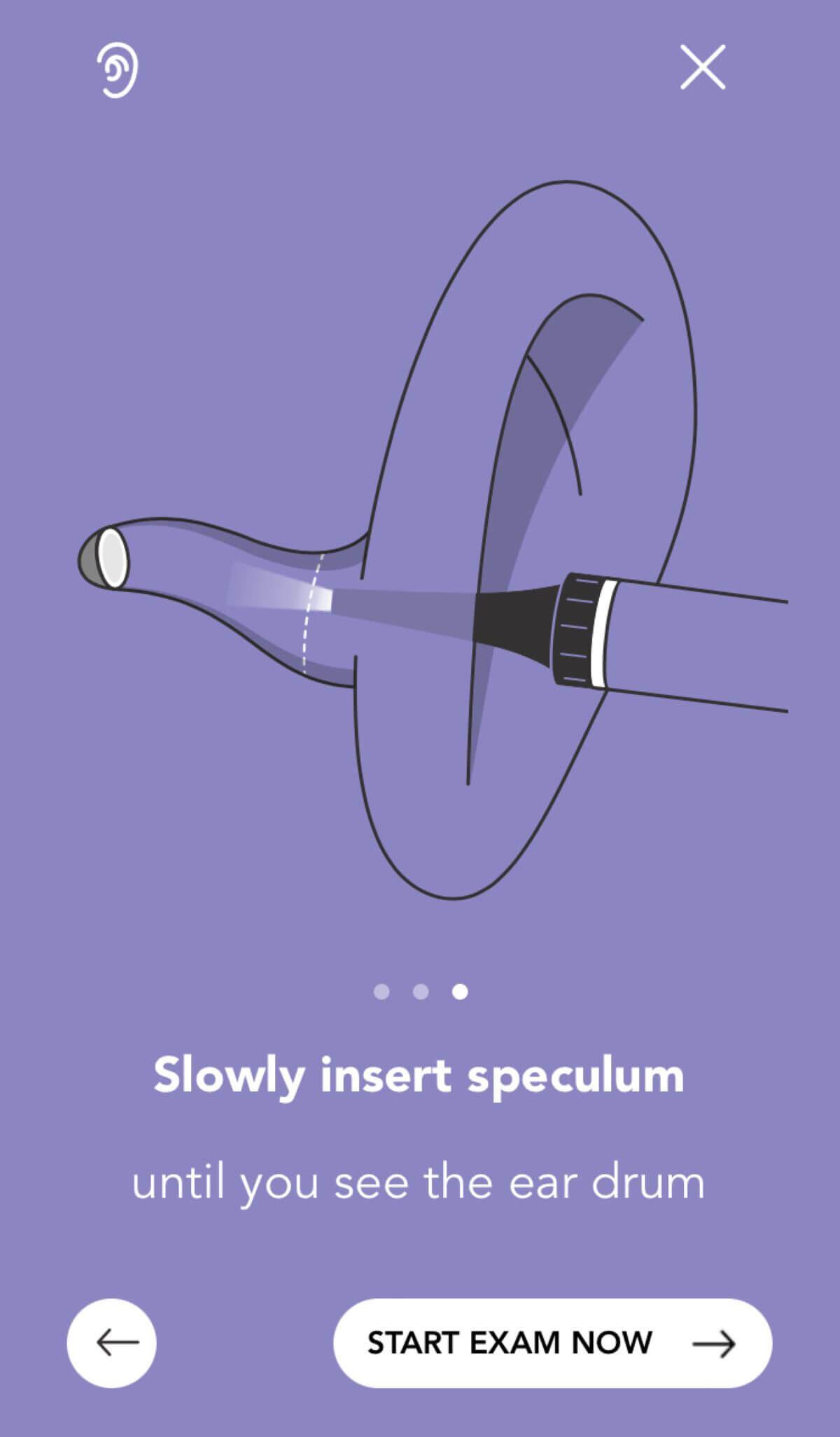
For the right ear, position the otoscope until the eardrum is visible and start the video capture.
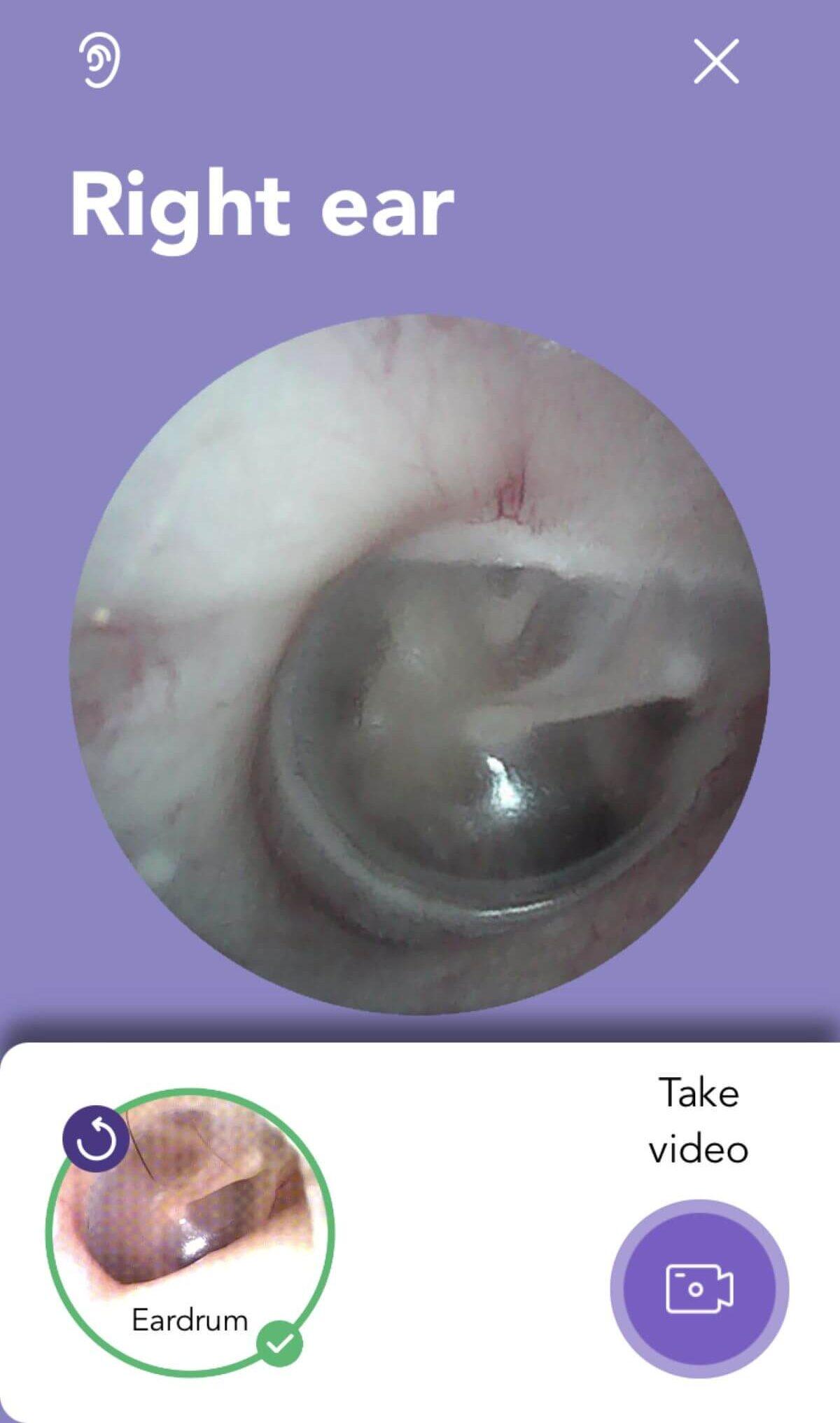
Review the recorded video. Save it when usable, or retake it if needed.
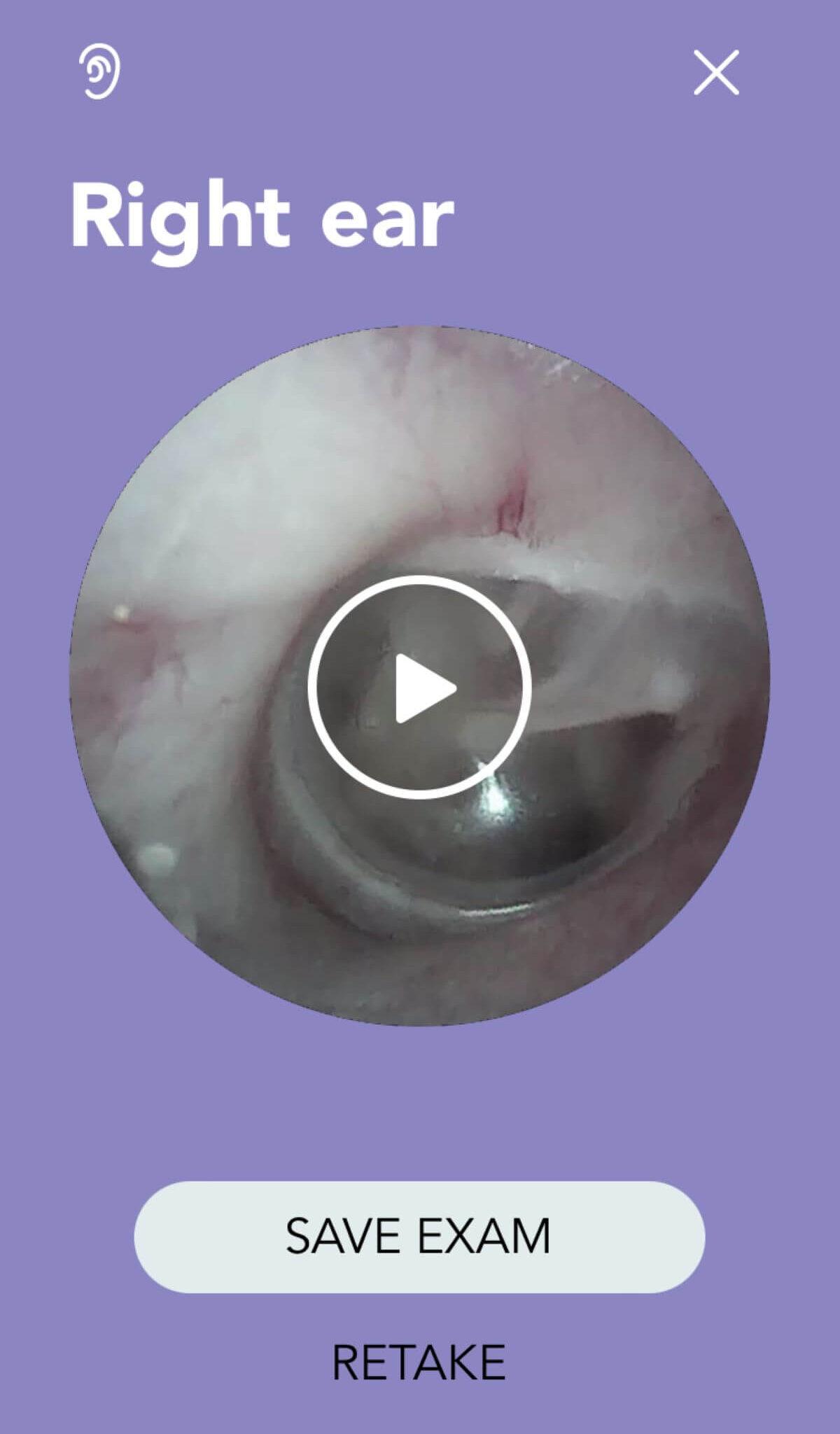
Use a clean speculum and repeat for the left ear.
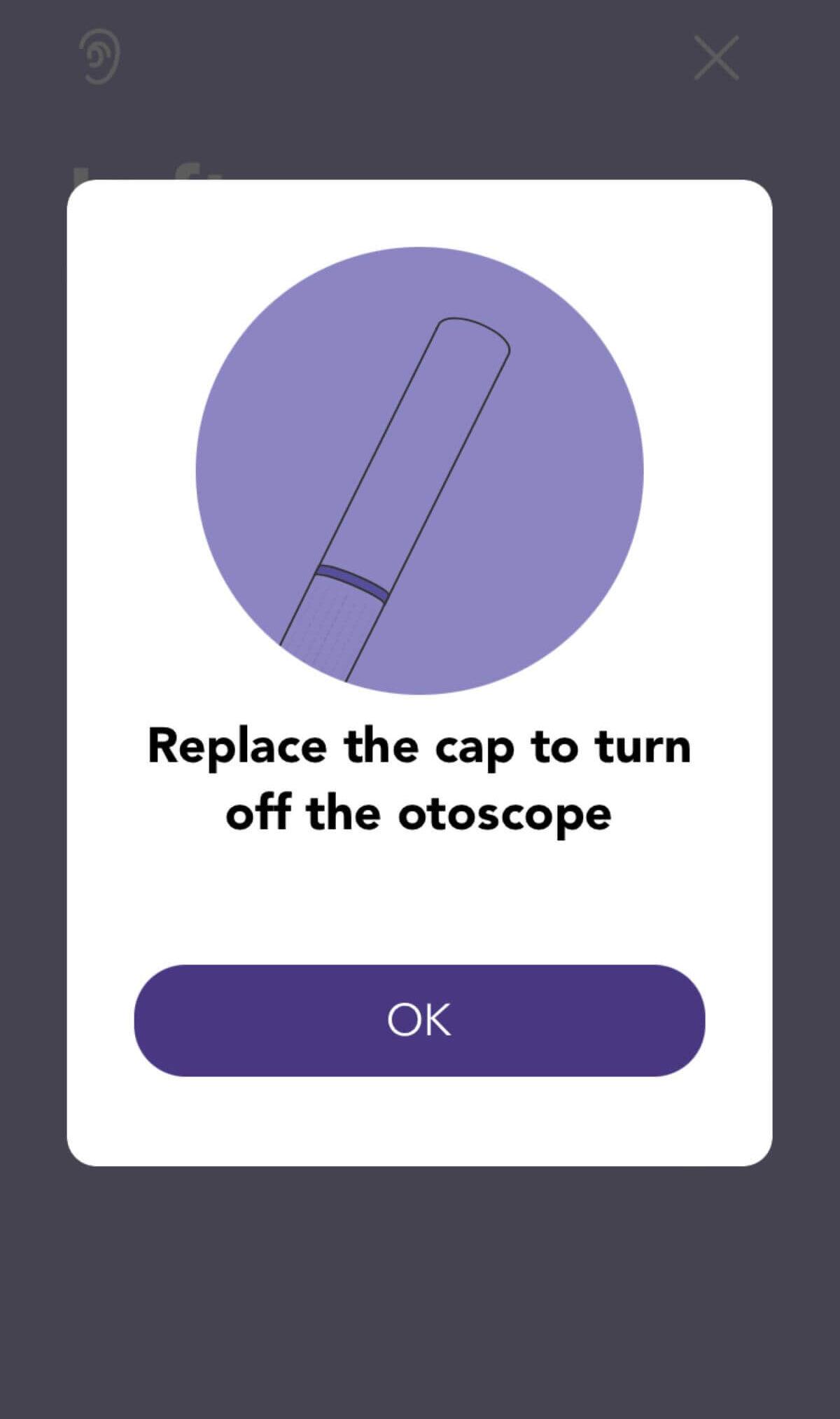
When finished, replace the otoscope cap to turn it off and return to the exam list.
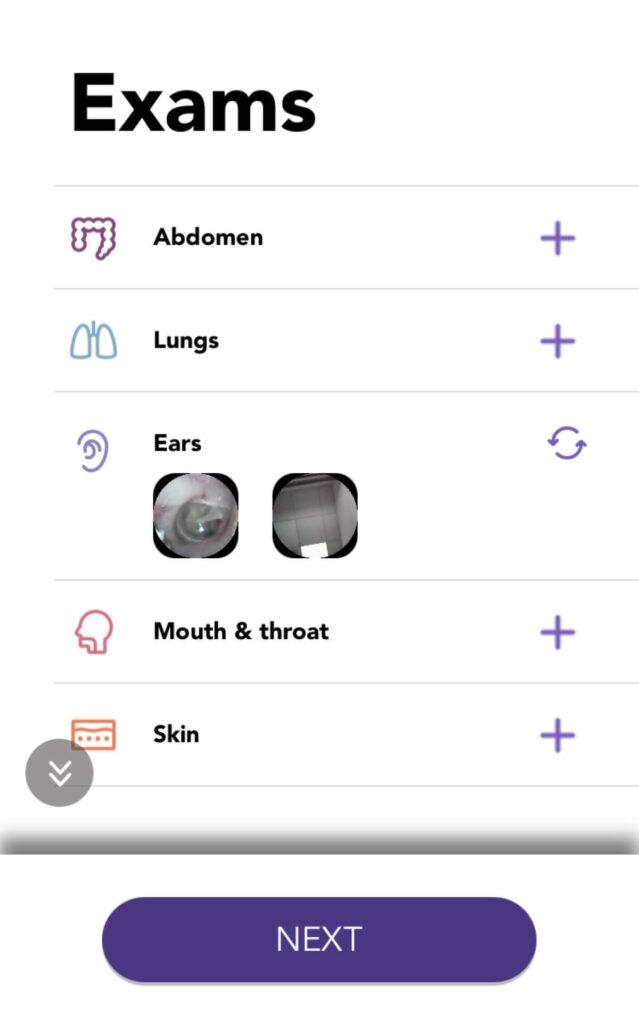
Verify that both ear recordings appear in the exam list.