1
Open the N9+ app and sign in.

Perform an Exam
Connect the wireless otoscope, attach a clean tongue depressor, and record a guided view of the mouth and throat.
Use this page with the current N9+ app prompts, product labeling, organizational protocols, and clinician direction.
Follow the current in-app tutorial and use a clean tongue depressor for the exam.
Step by step
Open the N9+ app and sign in.
Choose the patient from the Member Dashboard and tap Take Exam.
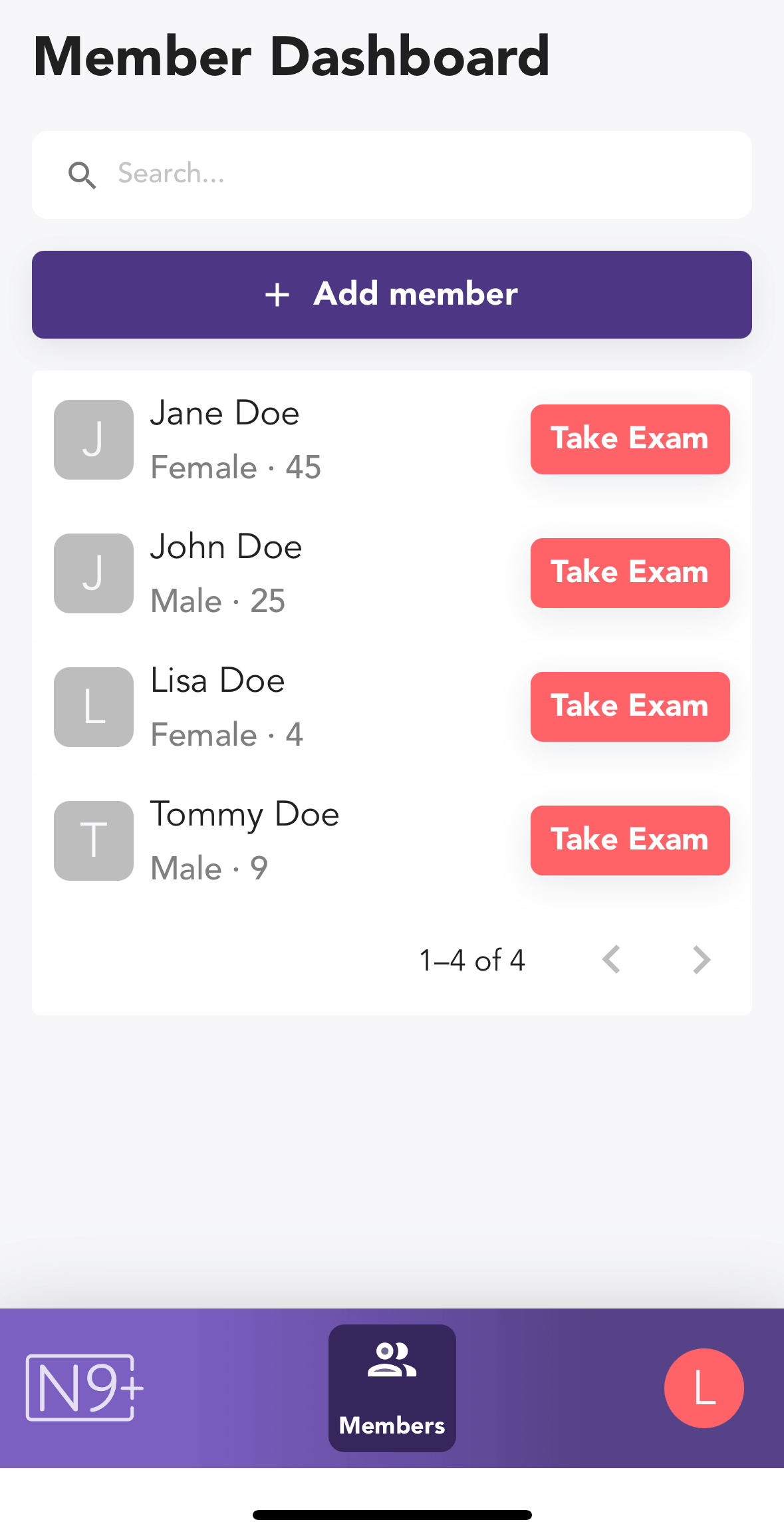
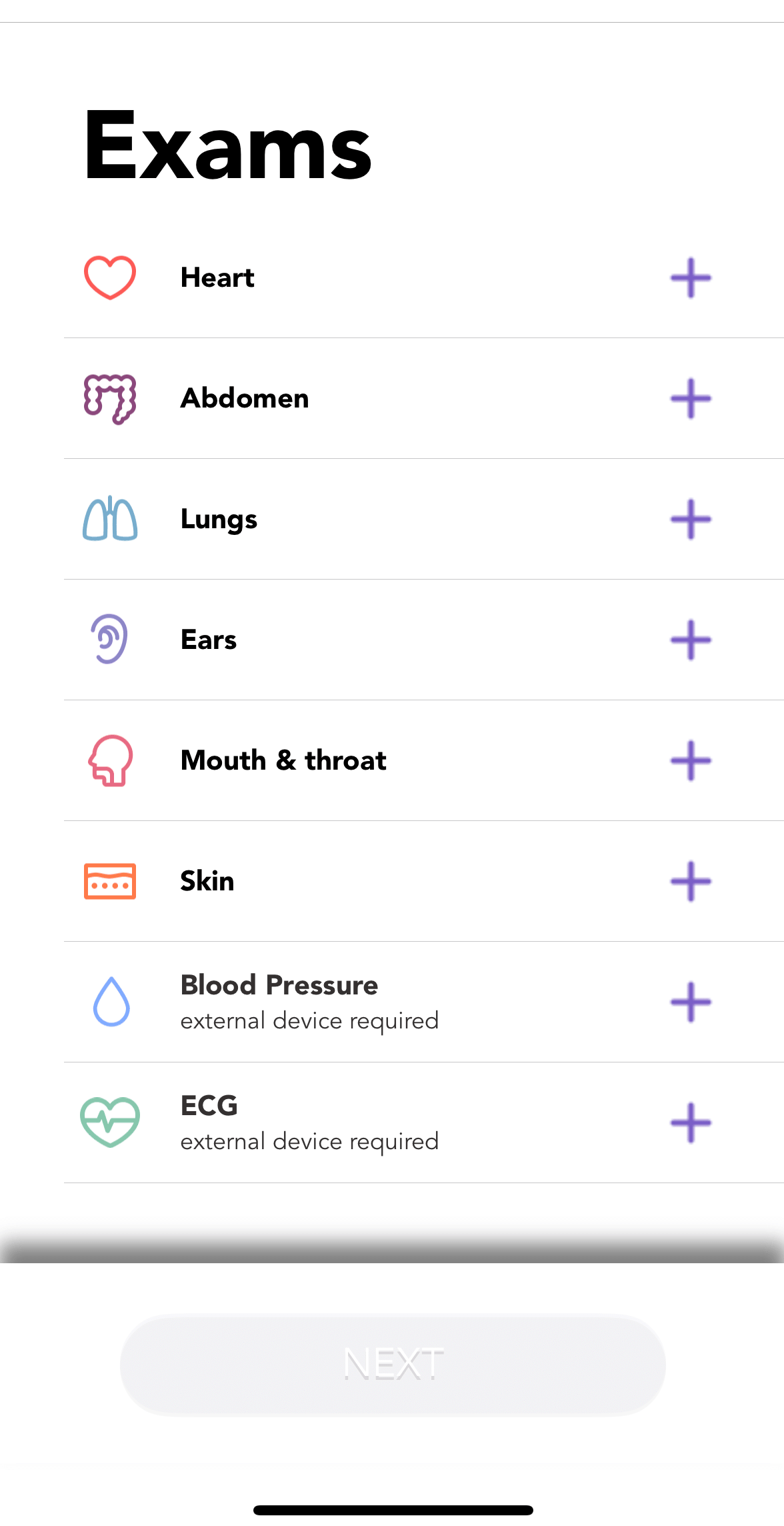
Select Mouth & Throat from the exam list.
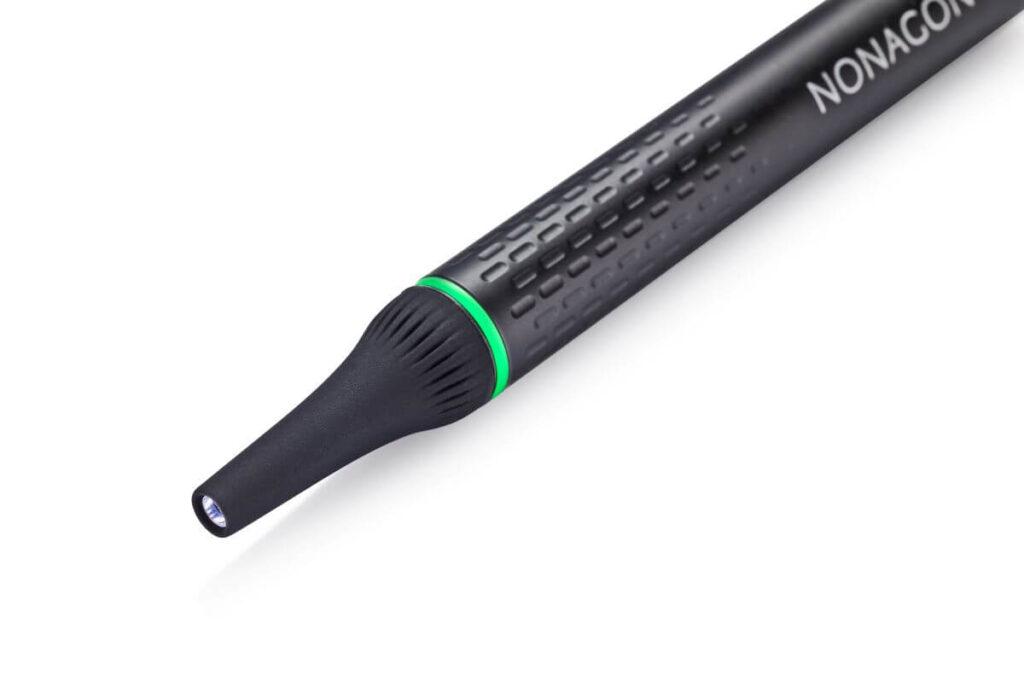
Remove the otoscope cap to turn it on and follow the connection prompt.
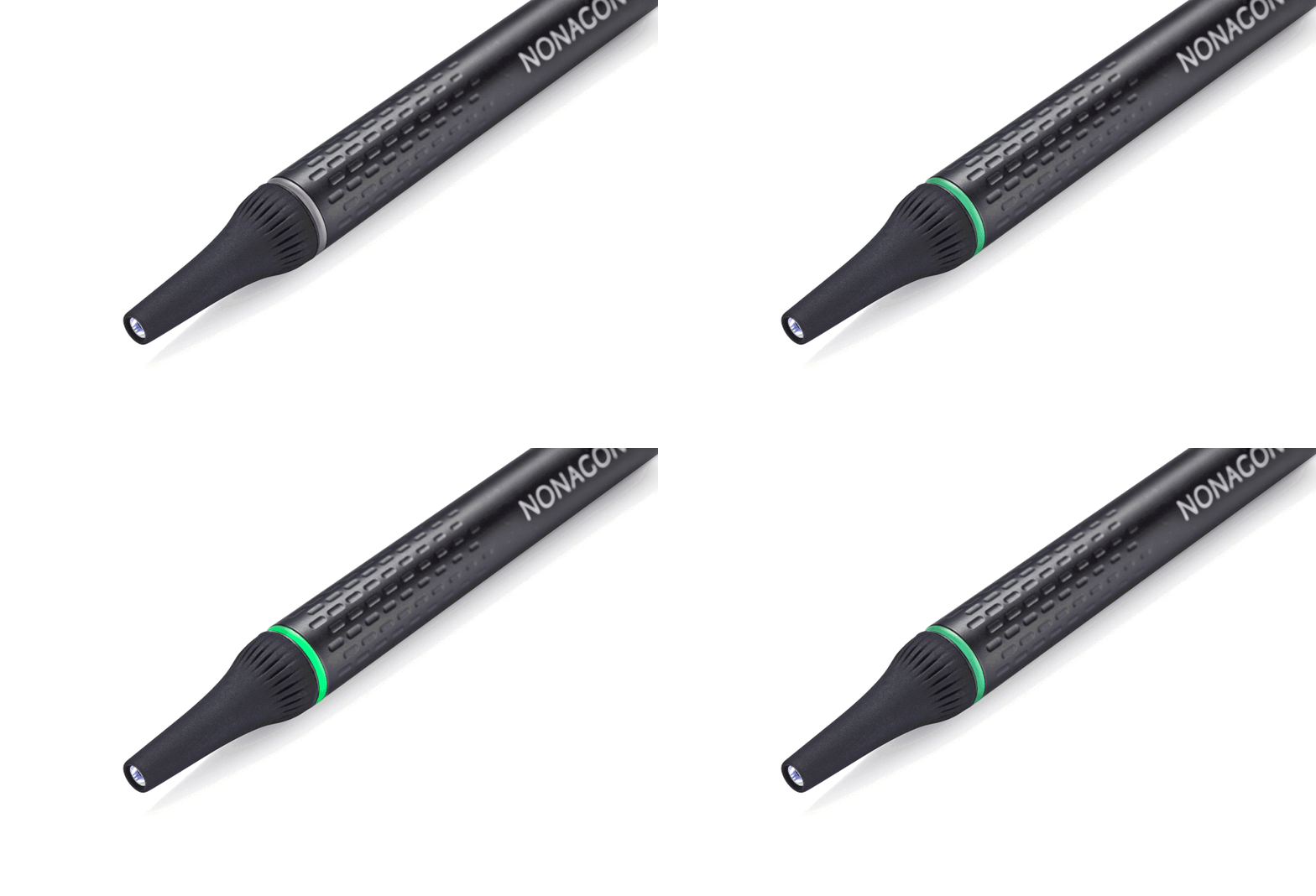
Join the otoscope wireless network when prompted.
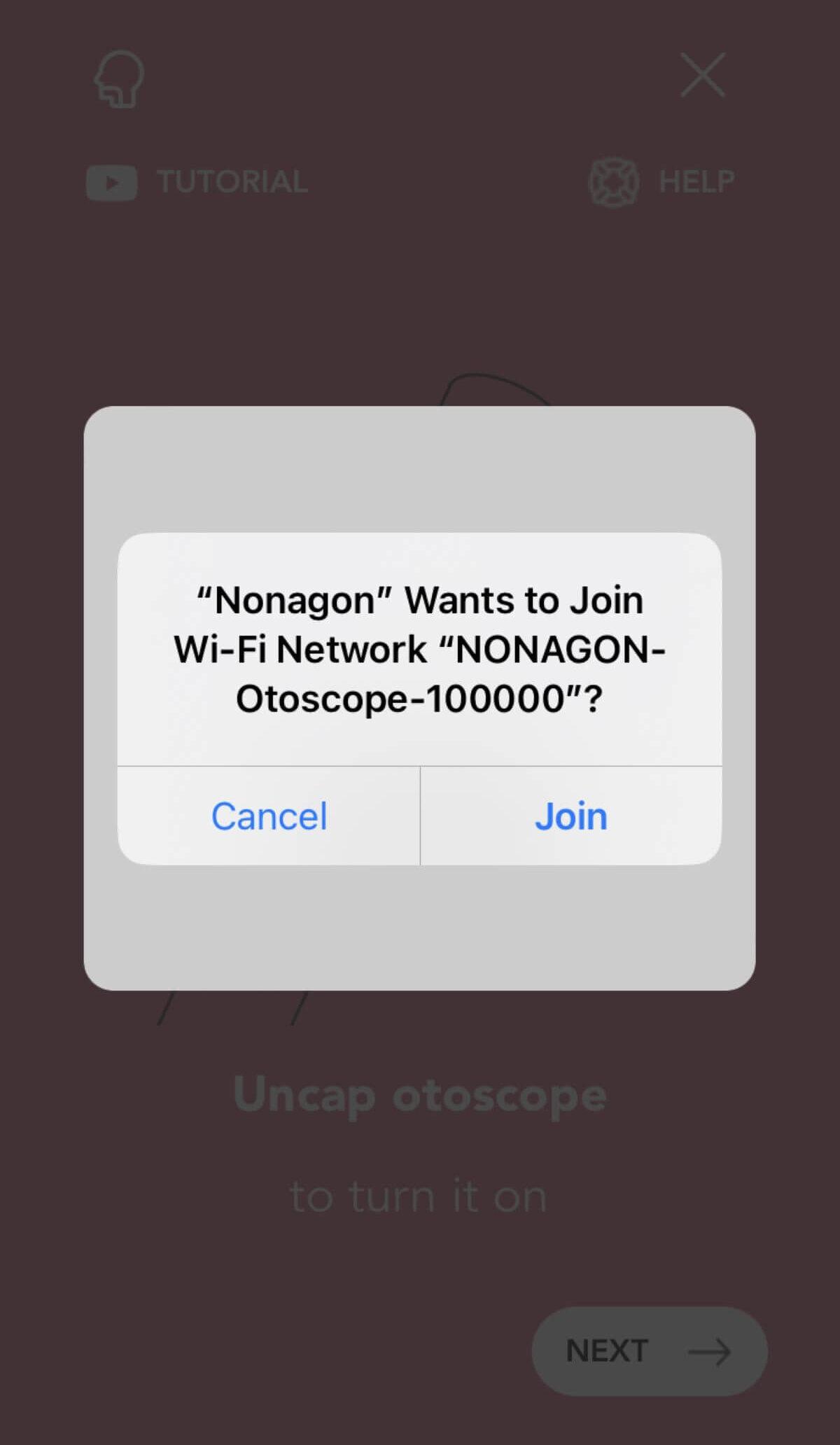
Confirm the connection, then attach a clean tongue depressor securely.
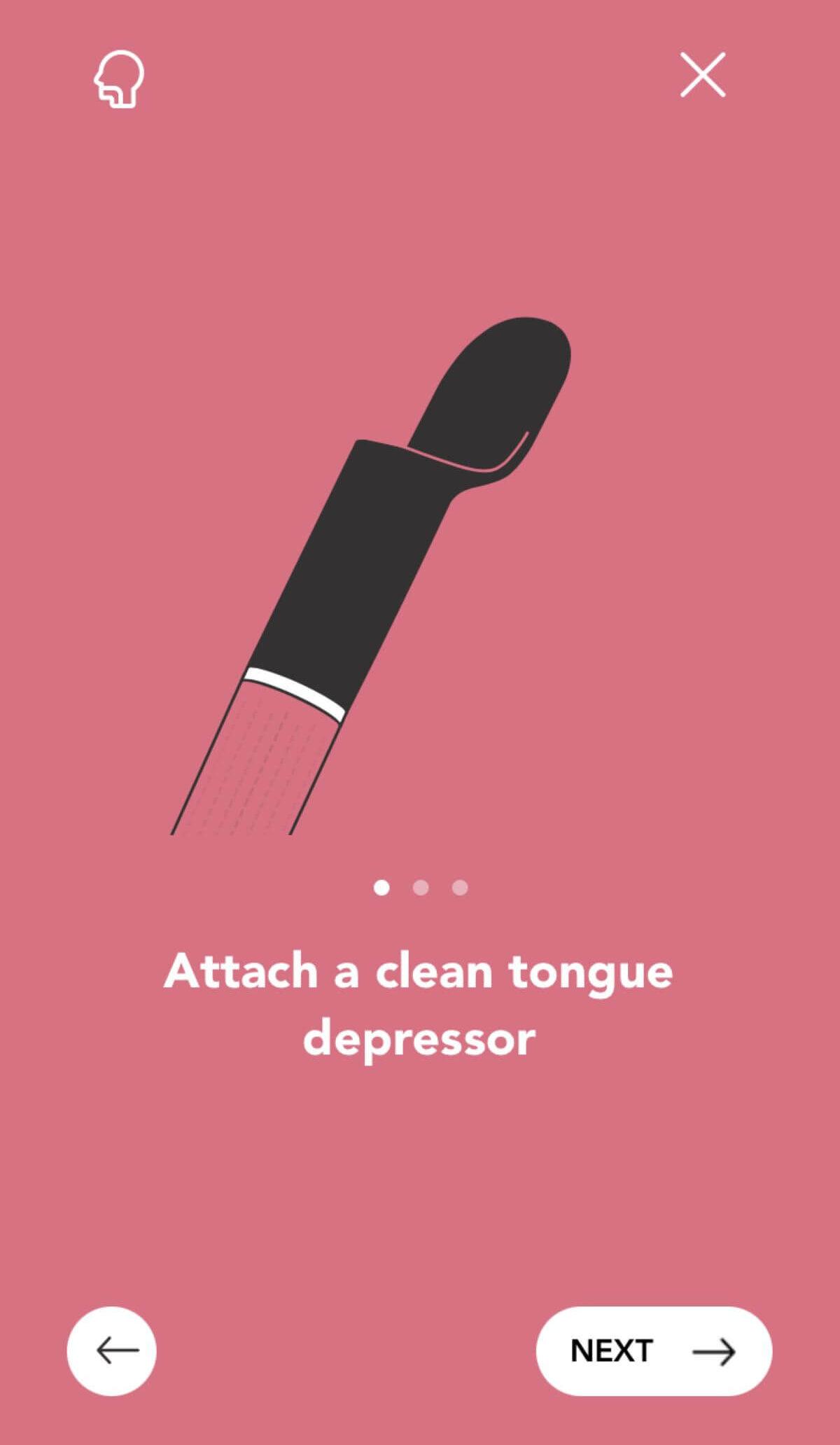
Review the positioning tutorial and continue to the exam.
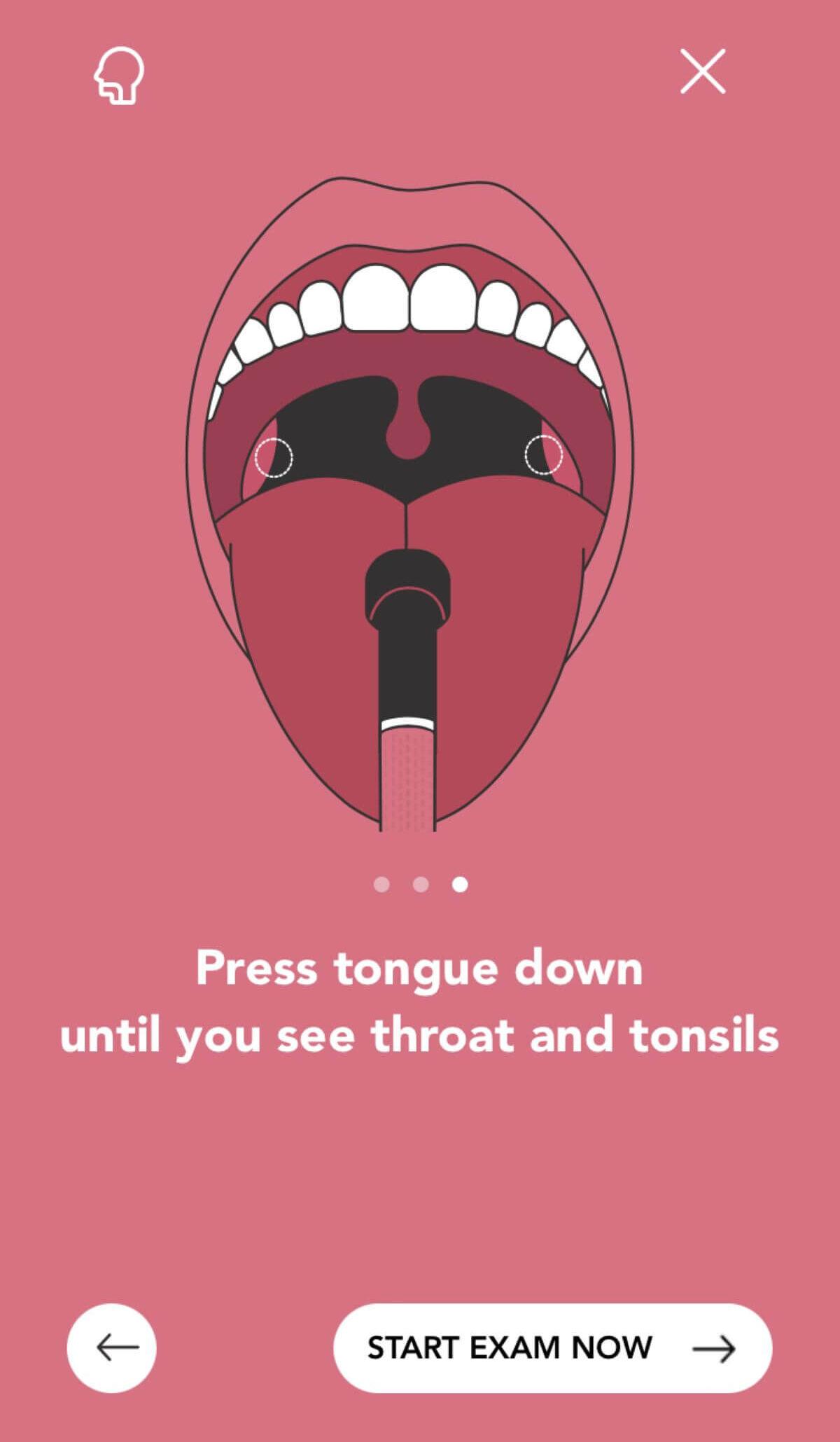
Position the tongue depressor to expose the throat and tonsils, then start the video capture when the view is clear.
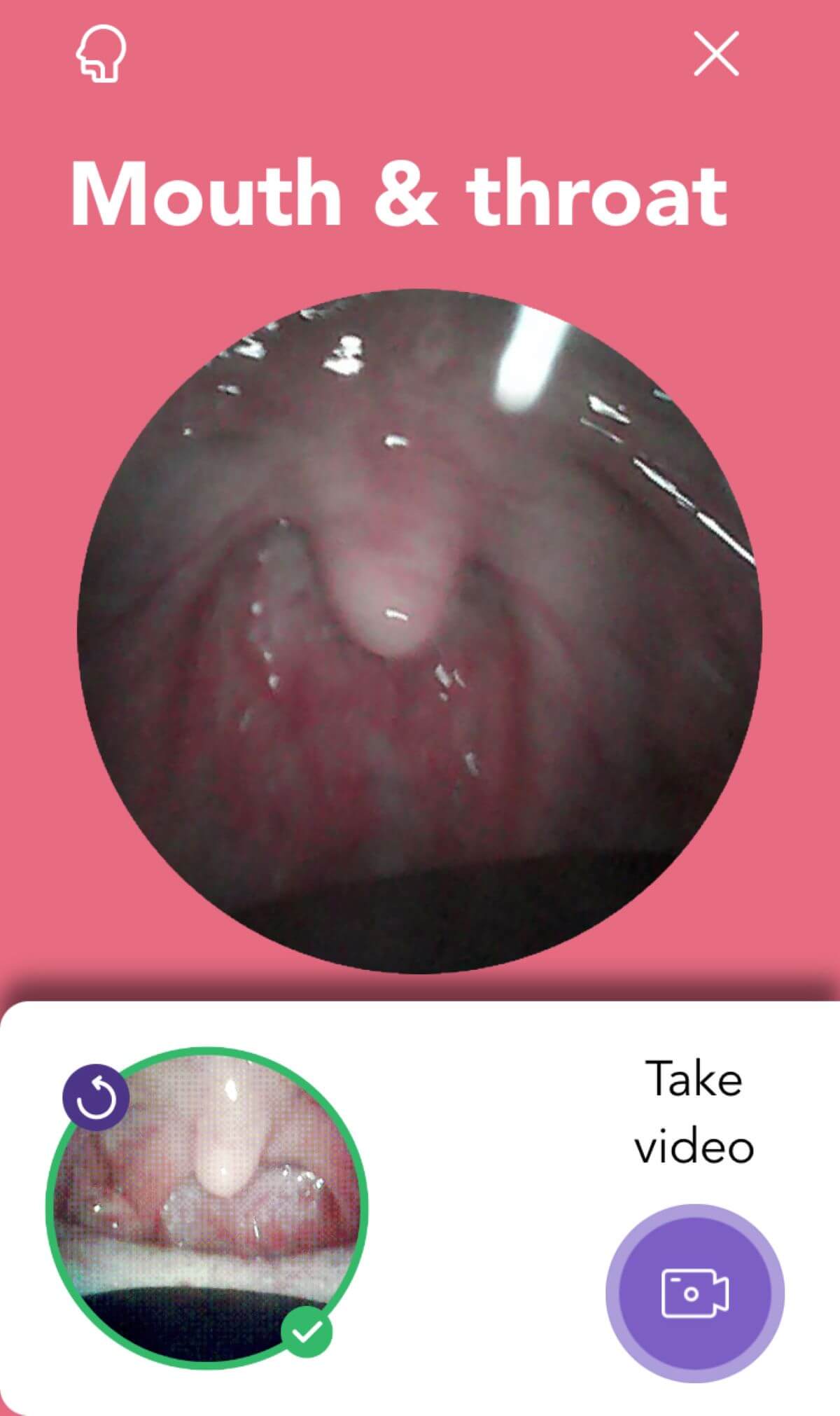
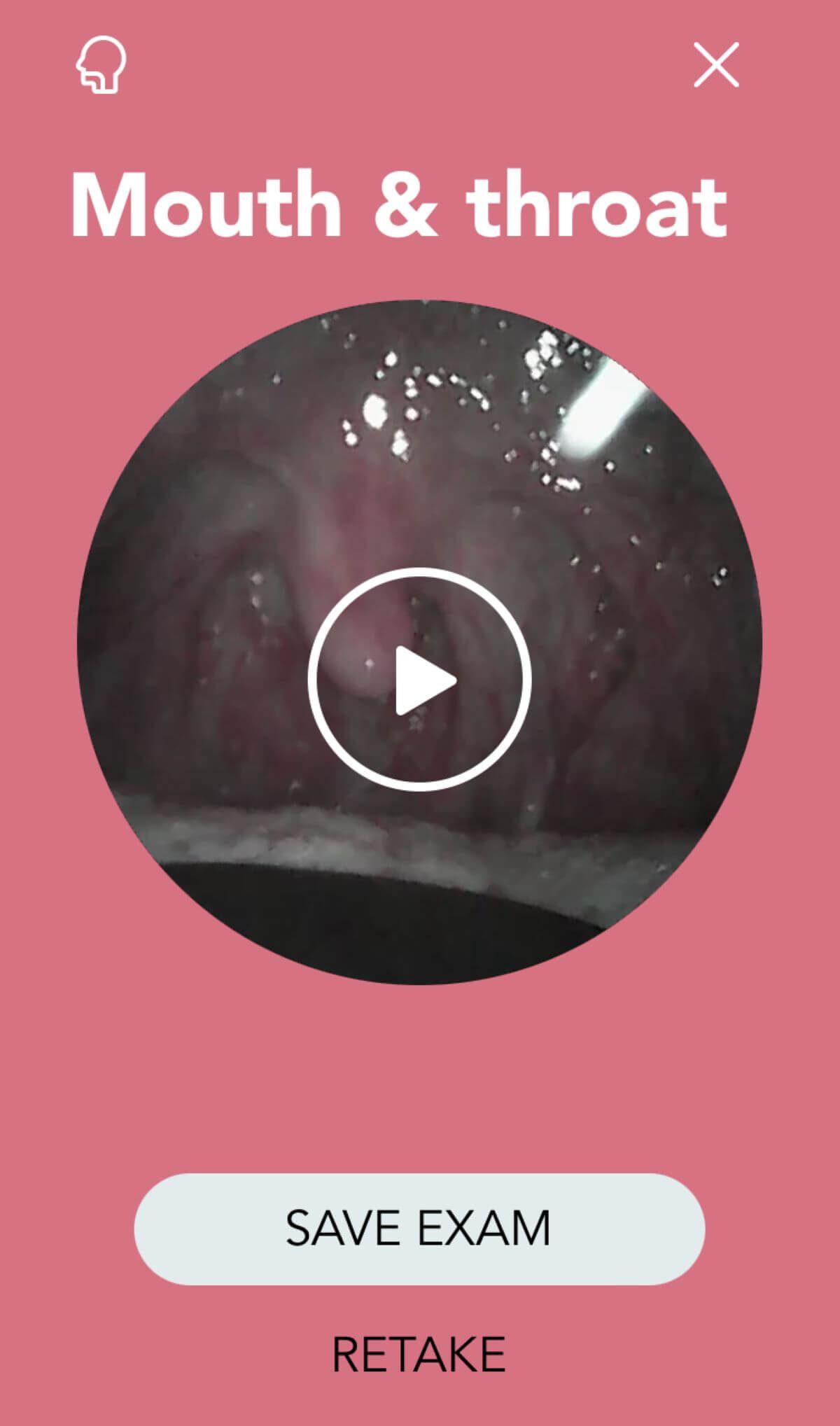
Review the recorded video. Save it when satisfactory or retake it if needed.
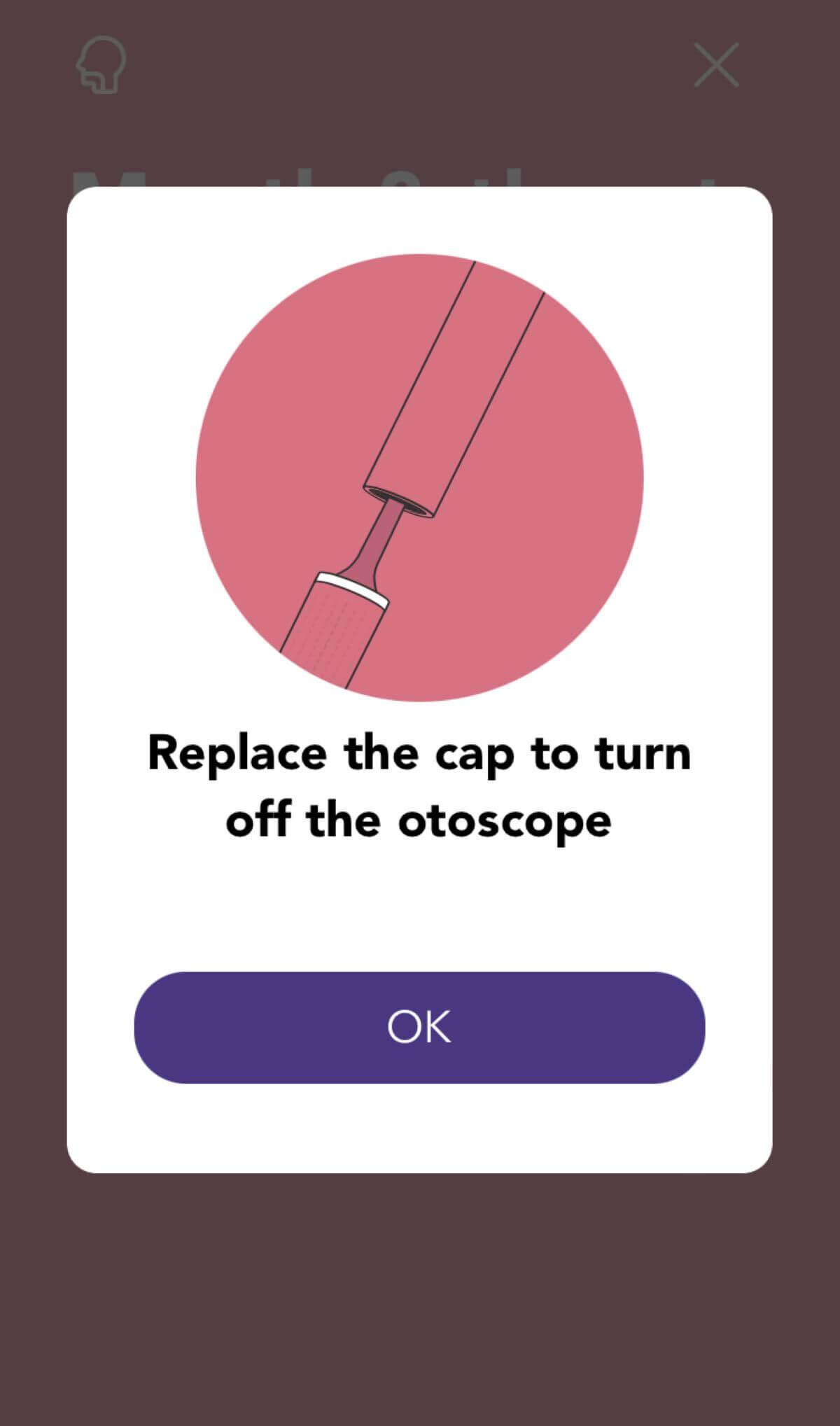
Remove the tongue depressor and replace the otoscope cap to turn the otoscope off.
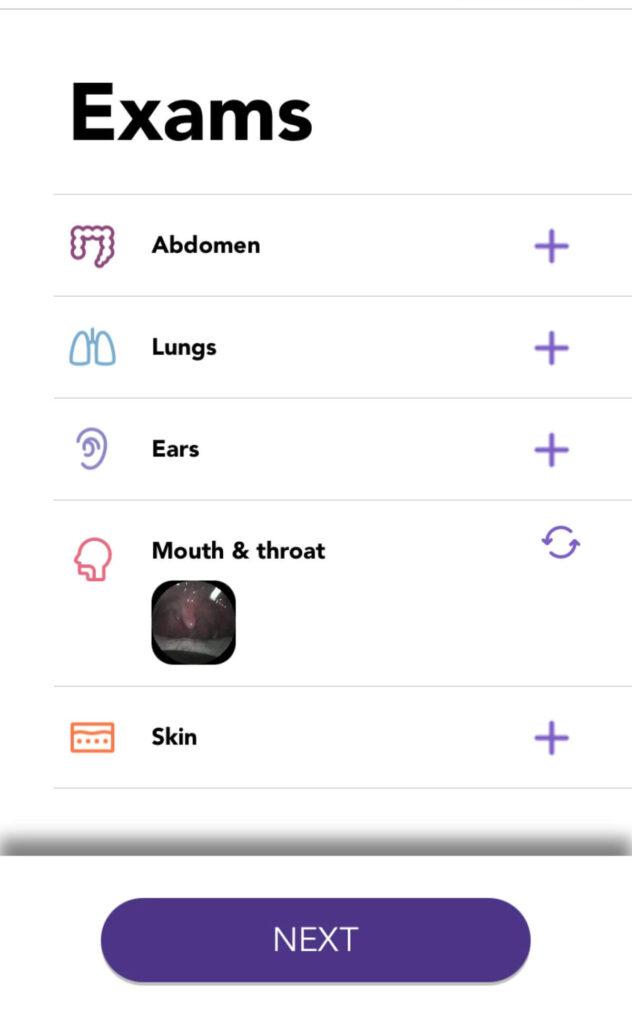
Confirm that the mouth-and-throat video appears in the exam list.